Saturday, April 24, 2010

How much memory is free?

Display amount of free and used memory in the system

user1@deby:~$ free -m
             total       used     free   shared  buffers   cached
Mem:           377         61      315        0       30       16
-/+ buffers/cache:         14*     362**
Swap:         1105          0     1105
14* - the amount of physical memory the system is using right now
362** - actually free.

File system disk space usage

user1@deby:~$ df -h
Filesystem            Size  Used Avail Use% Mounted on
/dev/sda1             327M   89M  222M  29% /
tmpfs                 189M     0  189M   0% /lib/init/rw
udev                   10M  604K  9.5M   6% /dev
tmpfs                 189M     0  189M   0% /dev/shm
/dev/sda9              11G  156M  9.9G   2% /home
/dev/sda8             373M   11M  343M   3% /tmp
/dev/sda5             4.6G  397M  4.0G   9% /usr
/dev/sda6             2.8G  145M  2.5G   6% /var

How to Find Files in Linux

The following command helps you find all files with names that start with test in /home folder:
find /home -name 'test*'
Find all files owned by user1 that are larger than 20MB:
find /home -user user1 -size +20M
Look for a text1 in all files in /etc:
find /etc -exec grep -l text1 {} \;
List txt files starting from current directory with phrase 'find me' inside:
find . -name '*.txt' | xargs grep 'find me'

Vim Settings

You can setup default vim settings for all users in /etc/vim/vimrc.local:
" Enable syntax highlighting
syntax on
filetype plugin indent on

" If using a dark background within the editing area and syntax 
" highlighting turn on this option as well
set background=dark

" Enable mouse usage (all modes) in terminals
set mouse=a 

set t_Co=256
"colorscheme desert256
colorscheme wombat256

set expandtab           " Convert tabs to spaces
set tabstop=4           " Tabs = 4 spaces
set shiftwidth=4        " Indent/outdent 4 spaces

set incsearch           " Do incremental searching
set showmatch           " Show matching brackets

set nobackup
set noswapfile
set number
set termencoding=utf-8
set encoding=utf-8
set fileencodings=utf-8,cp1251
Here is how you can install new color schemes for vim:
deby:~# wget -O /usr/share/vim/vimcurrent/colors/desert256.vim \
http://www.vim.org/scripts/download_script.php?src_id=4055

deby:~# wget -O /usr/share/vim/vimcurrent/colors/wombat256.vim \
http://www.vim.org/scripts/download_script.php?src_id=13397
Once downloaded, open vim and issue the following command to try:
:colorscheme wombat256
If you prefer black background in wombat256:
hi Normal       ctermfg=254     ctermbg=0       cterm=none      guifg=#f6f3e8  guibg=#CCCCCC  gui=none

Working with Vim

It is convenient to make vi alias for vim:
apt-get install vim less
update-alternatives --set vi /usr/bin/vim.basic
update-alternatives --set editor /usr/bin/vim.basic

Commands

i - opens insert mode for editing, inserts text after the current cursor position
esc - returns to command mode
a - opens insert mode for editing, inserts text at the current cursor position
:w - writes changes
:wa - writes all changes
:x or ZZ - writes and quits
:q! or ZQ - quits without saving changes
:xa - writes and quits all windows

Text Manipulation

u - undo
v - enters visual mode to mark a block on which you can use commands
d - deletes the current selection
y - yanks (copies) the current selection
p - paste
gq - reformat paragraph

Moving around

gg - top of the file
G - bottom of the file
/text - search forward
n - next match
N - previous match
?text - search backward
:%s/old/new/g - replace old with new globally

Multi-windowing

^ws - horizontal split
^wv - vertical split*
^wc - close current window
^w up arrow - move cursor up a window
^w_ - maximize current window
^w= - make all equal size

Folding

zo - open
zc - close
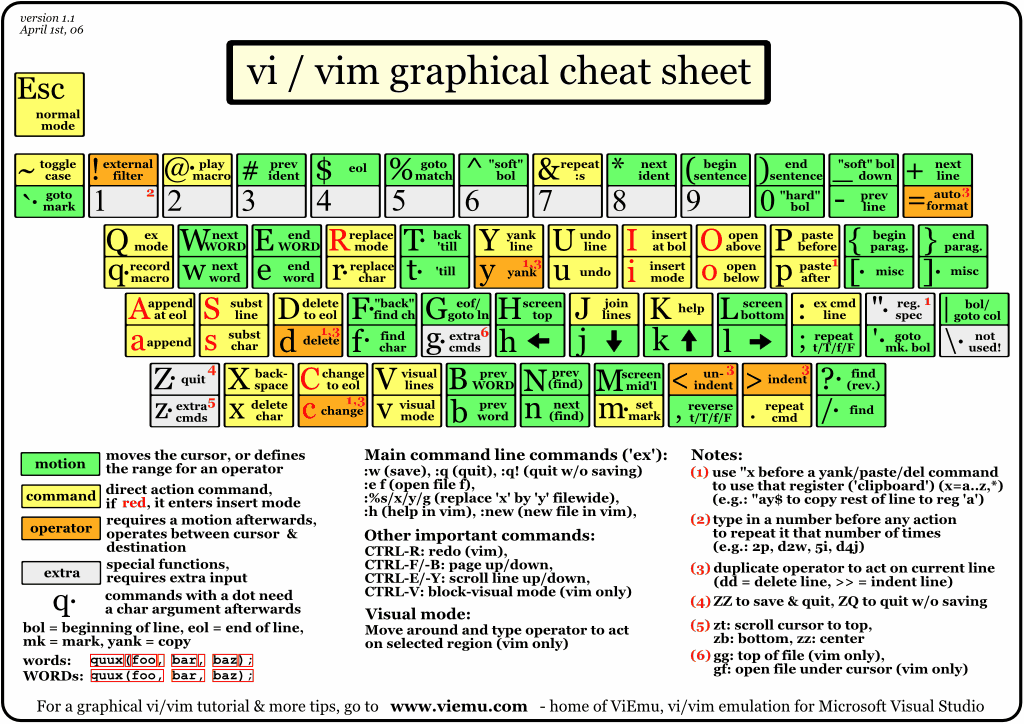
* - if some commands for any reason doesn't work for you, most likely you are using vi or somewhat cut version of vim. See vim cheat sheet.

File backups with tar

Creating an Archive File

tar -czf scripts.tgz scripts/ scripts-test/

List the Contents

tar -tzf scripts.tgz
find a file in archive:
tar -tzf scripts.tgz | grep file.txt

Extracting an Archive File

Now that you know how to create an archive file, it’s rather easy to extract it.
tar -xzf scripts.tgz
You might need extract just one file:
tar -xzf scripts.tgz scripts/readme.txt